FEATURES
The DJingo app is packed full of features that will make hosting your event a smooth and hassle-free experience, delivering an unmatched level of professionalism for your customers and your audience.
With its beautifully designed user interfaces, intuitive behavior, non-rigid game play, and detailed graphical help screens, you will quickly become a DJingo master!
Click on the elements below to learn more about the powerful features of the DJingo app.
HOME
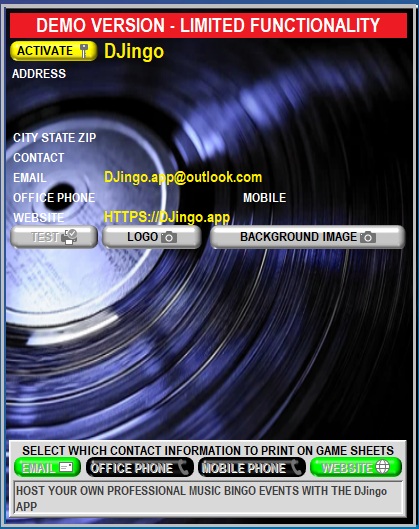
The home panel holds your basic contact information, including an optional logo and background image. If selected as an option from the game play panel, the logo will print on the bottom right corner of the game sheets, and the background image will print as a watermark behind the game squares. You can also choose what contact information is printed on the bottom of the game sheets, including an optional promotional or informational line of text.
VENUE
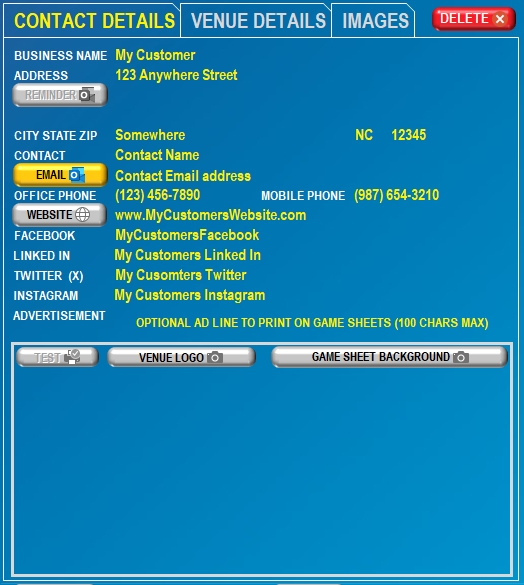
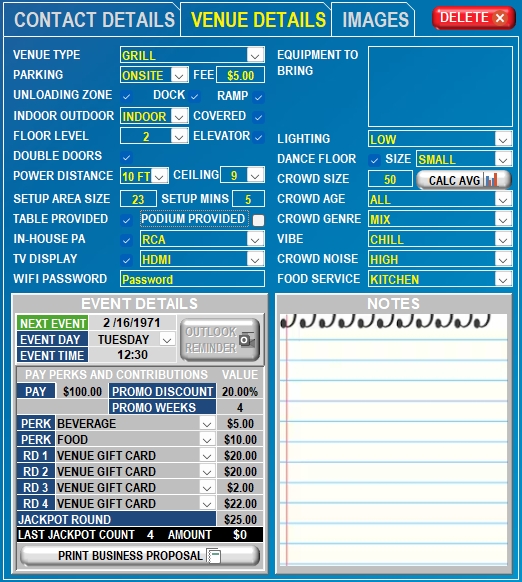
The Venue panel can store a plethora of information about your customers. The Contact Details section saves the basics such as your customers address and phone numbers, contact, email and website, select social media links, and an optional logo and background image. If selected as an option from the game play panel, the customers logo will print on the bottom left corner of the game sheets, and the background image will print as a watermark behind the game squares. You can also include an optional promotional or informational line of text, a value add for your customer while giving your game sheets a refined professional look.
MUSIC LIBRARY
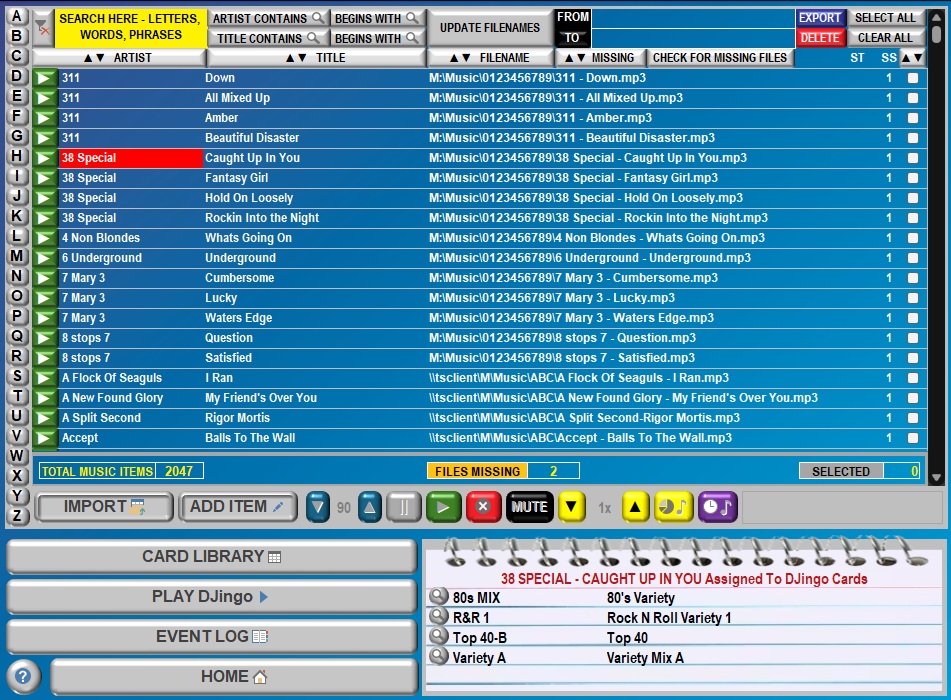
The DJingo Music Library is the master repository for your music items. Information that is stored includes the Artist Name, Title, Filename and Folder paths, and the default Start Time and Start Speed. Music items themselves are not saved, only the information about your music items. The Music Library includes an audio player which you can use to evaluate your items. As your library grows, the DJingo app makes it easy to find what you need using custom search criteria. If your files get changed or moved around on your hard drive, the DJingo app can highlight any missing files. Updating the filenames and folder paths can be done individually or in batches using the update feature, or you can use an Excel spreadsheet, making it simple to manage changes. Music items that are assigned to game cards are also conveniently displayed for quick reference.
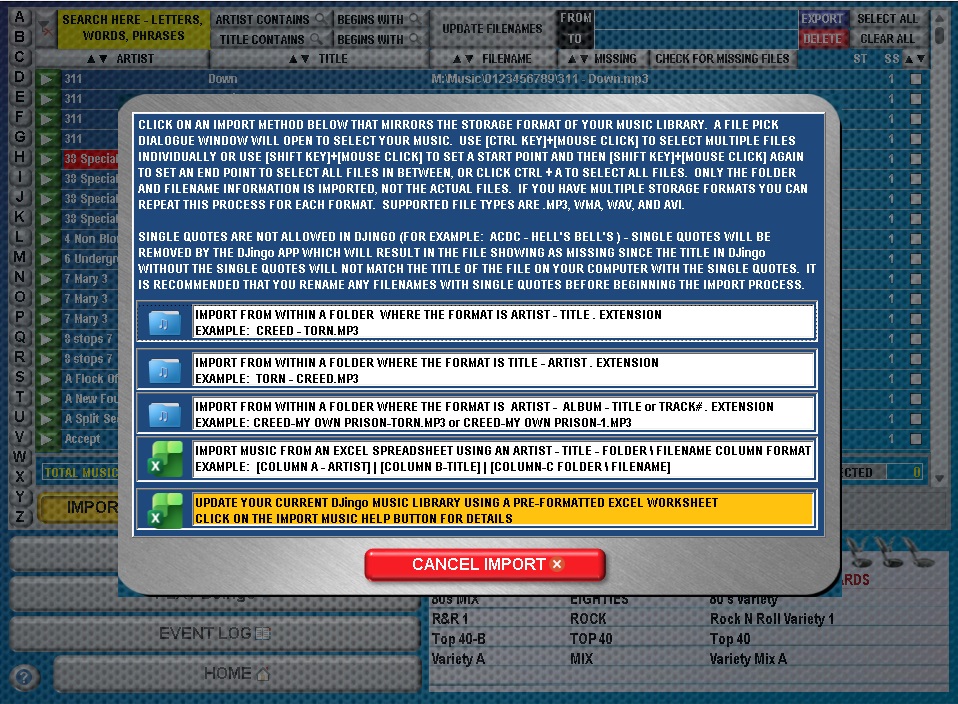
The DJingo app simplifies adding music items to the library by using a powerful Import feature. Import schemas are based on the most popular file naming and storage conventions, and you can also use an excel spreadsheet to quickly populate your library. If you do not have a music library, you can build one by downloading music from the internet, or you can choose to use cloud hosted music on sites such as Soundcloud or YouTube. However, using cloud hosted music means that you will not be able to use the Djingo Player which is one of the most important and powerful features of the DJingo App.
CARD LIBRARY
A Card is the basis for the squares on each game sheet, containing the list of music items that will be queued for game play, and the DJingo Card library is the repository for all Cards. Cards are also used for intermission, explained in the GAME PLAY element below. Each Card has a Title, Description and a Genre for easy sorting. Genres are also managed from within the Card Library panel. Each Card can have its own background image which will print on the game sheets as a watermark behind the game squares. The Venue and Business Background Images explained in the previous elements will override the default Card background image.
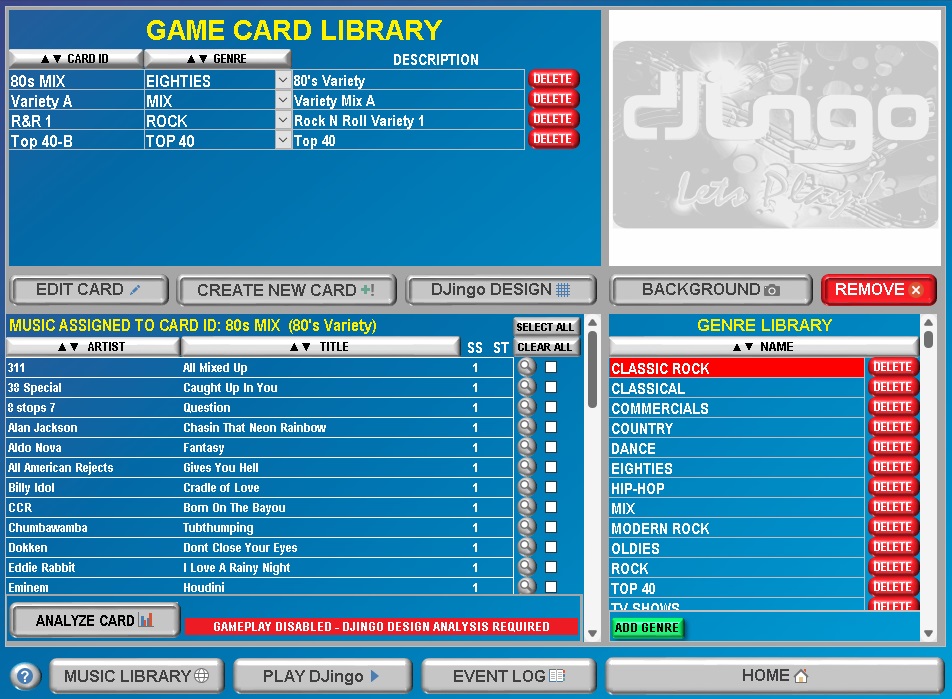
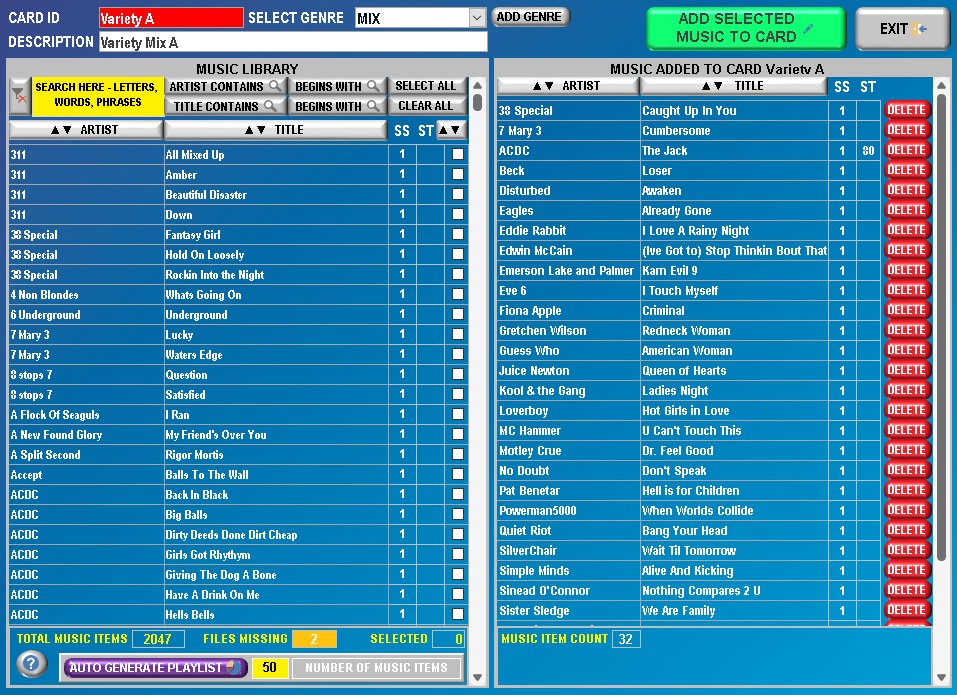
Music items are added to each card from the master library, which includes the default Start Time and Start Speed. However, Card item Start Times and Start Speeds are independent of the master Music Library and can be adjusted for each item on each card. The DJingo app can even auto generate a playlist for you which will always have a unique Artist and Unique Title allowing for the Combo game play format explained in the GAME PLAY section.
DJingo DESIGN
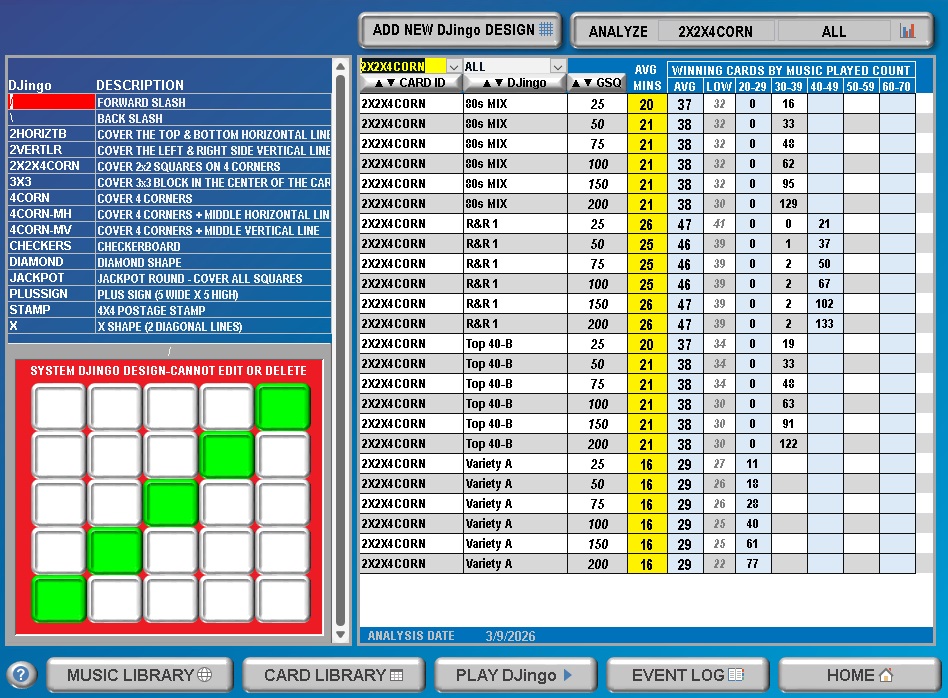
The DJingo Design panel is accessible from within the Card Library and allows you to create your own unique patterns. The DJingo app also includes numerous patterns, including the Jackpot cover-all. Creating a new DJingo pattern is as simple as adding a Name and Descriptionand using the visual designer to turn ON and OFF squares to match your pattern. But just because you have a design idea doesn’t necessarily mean that it is feasible for game play. Not to worry, because the DJingo app will analyze your pattern against every Card in your library, simulating a real randomized game play environment to provide you with detailed metrics on how you can expect your design and cards to perform during game play. Analytical results include average playing times and win statistics to help you improve your design and empower you to confidently select Cards and patterns that are best suited for your events.
GAME PLAY
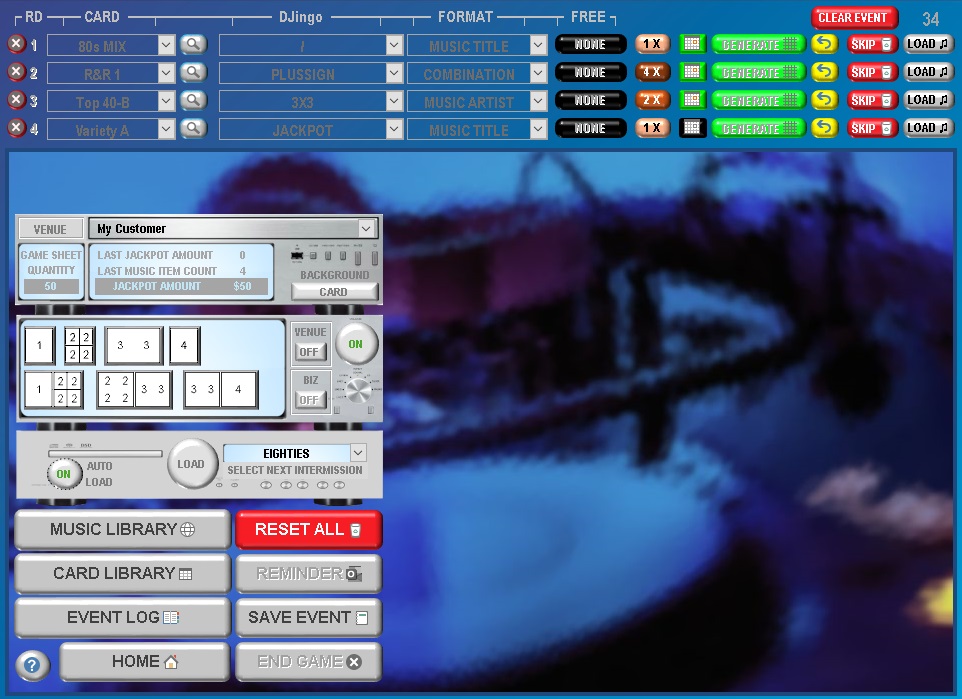
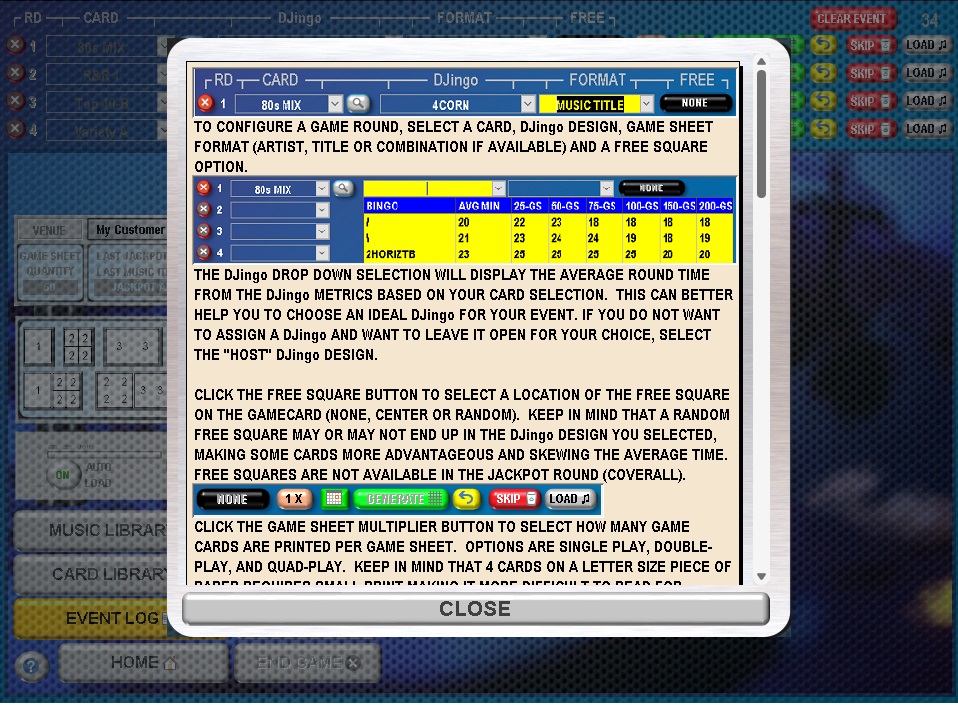
The Game Play panel brings all of the DJingo elements together to create a first-class event production designed with time-saving intuitive features. Play up to 4 rounds in any order. Configuring a round is as easy as selecting a Card, selecting a DJingo pattern, and selecting the Title, Artist, or a Combination of both for the game square format. Free squares are optional and can print in the center or in a random square, different on every game sheet. Enable the callout feature to print a bold dashed border around the winning game squares (See the GAME SHEETS section below for examples). Increase the chances of winning by creating Double-Play or even Quad-Play game sheets. Activate the Venue and Business Logo buttons to print your business and your customers business logo on the game sheets. Click the Background button to toggle between Card, Venue or Business Background images, or select Alternate to print both. Ready to print? Choose from single or double-sided options with various multi-round combinations. Preview your prints, or send them directly to your printer, or save them as a PDF file to print in the future. You can also save your configurations for a future event. To load an event, simply click the Load button in the event log and all of your configuration settings will be restored.
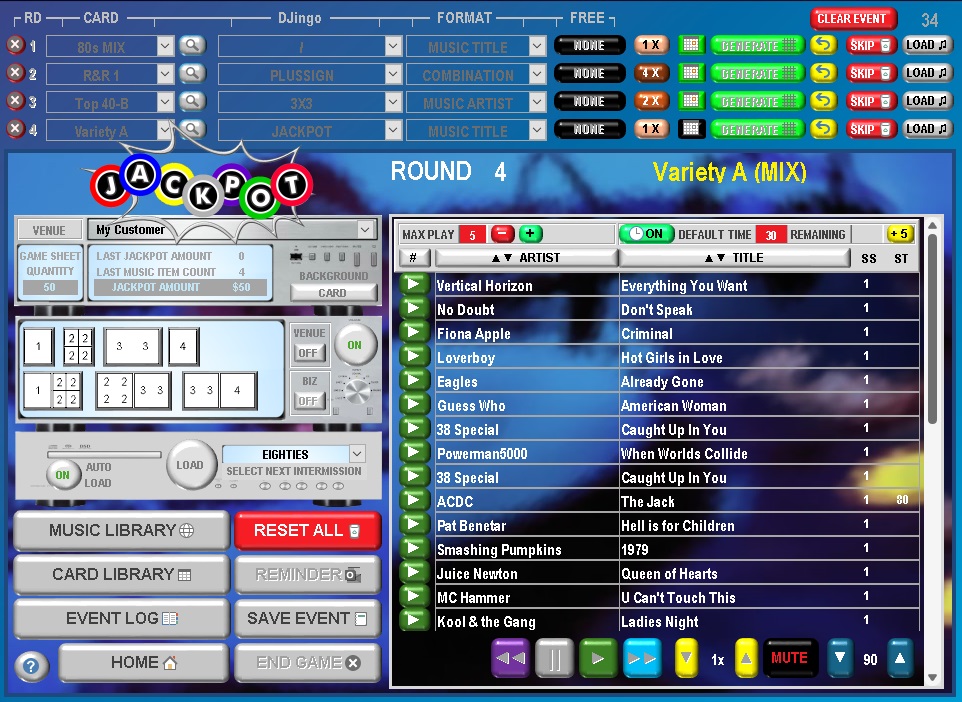
When you are ready to play, load the round of your choice into the DJingo player. Card playlists are loaded in a unique random order, but can also be sorted by Artist, Title or Item Number, or can be reloaded again for a different random order. The round begins when you click play. Start Times and Start Speeds in the playlist are inherited from the Card but can also be changed for the round. Default play duration is 30 seconds but can be adjusted for any round. Remaining play time can be easily extended for 5 additional seconds with a click of a button, or the timer can be turned OFF or ON at your discretion. Time remaining lets you know when the next music item will load but you can choose to play any item at any time, whether from the playlist or using the music player control buttons. Play counts are automatically tabulated and a Max Play setting will prompt you to stop the round or continue game play, normally used when playing Jackpot rounds, which will also display a Jackpot emblem. All music item transitions are automatically volume faded in-and-out for a pleasant listening experience. Have a potential winner? Click the Validate button and the play timer will pause and volume levels auto-reduce allowing you to focus on reviewing the game sheets. Click the NO WIN button to re-enable the timer, restore the volume level and continue game play. Click the WIN button to stop the round, disable the timer, and auto-reduce the volume so you can award prizes and engage your audience. Need to skip a round, or even end the game early? Just simply Double-click the respective buttons. If an Event, the logs are automatically saved.
While your preparing for your event or in between rounds, select a Card to use for intermission and load into the DJingo player. Click the play button next to any music item item to begin intermission. All intermission songs are played in their entirety and volume is auto-faded during transitions. Intermission can be stopped at any time. Click the auto-load button ON and your selected intermission card will automatically load when a game round is complete. For detailed help screens, click the help button on any panel.
GAME SHEETS
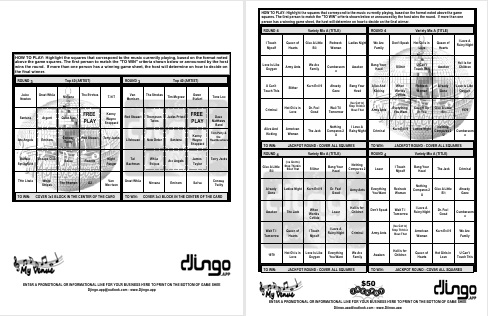
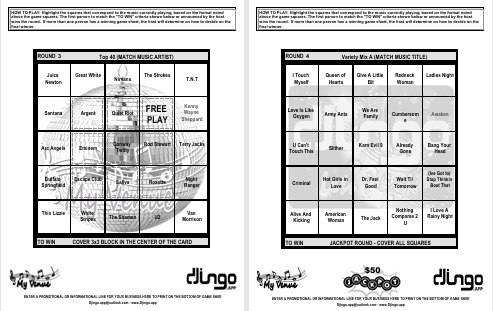
Three styles of Game Sheets can be printed in DJingo – Single-Play, Double-Play (2 Cards), and Quad-Play (4 Cards). Single-Play and Quad-Play sheets normally print in Portrait mode and can be printed single or double-sided. Venue and Business background watermarks and Logos print behind the game squares and on the bottom of Game Sheets. You can even print all four rounds on 1 Sheet.
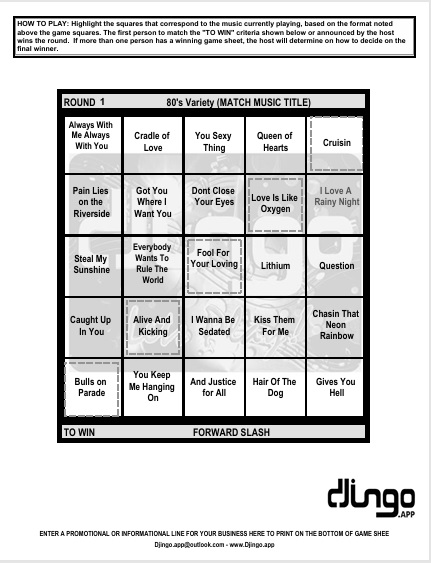
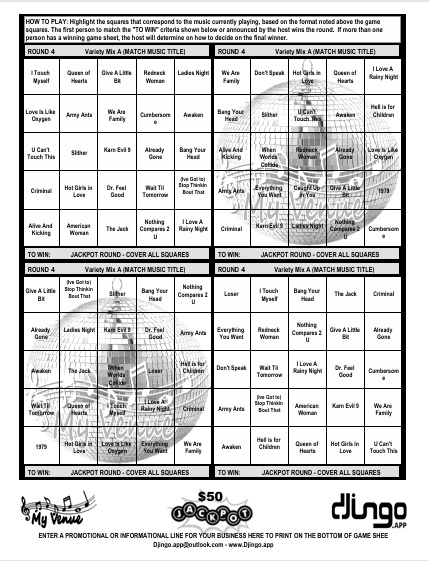
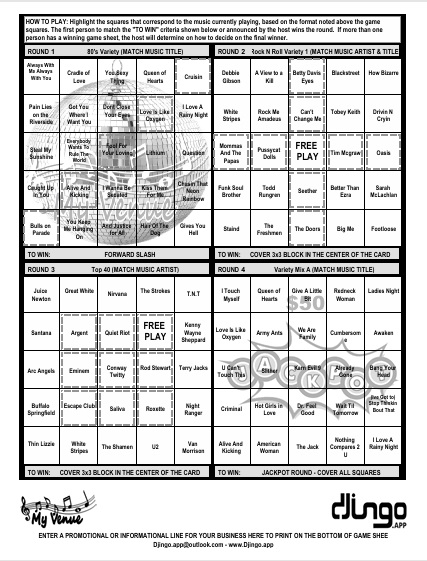
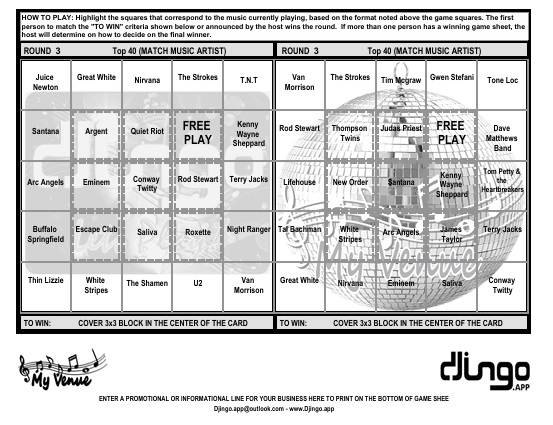
Double-Play sheets are normaly printed in landscape orientation and can also be printed on both sides. Game sheets are printable in multi-round configurations to save paper and provide more convenience for players. Game sheet text sizes adjust dynamically based on game card counts. The DJingo print buttons also adjust dynamically with round configuration changes and as game play progresses.
EVENT LOG
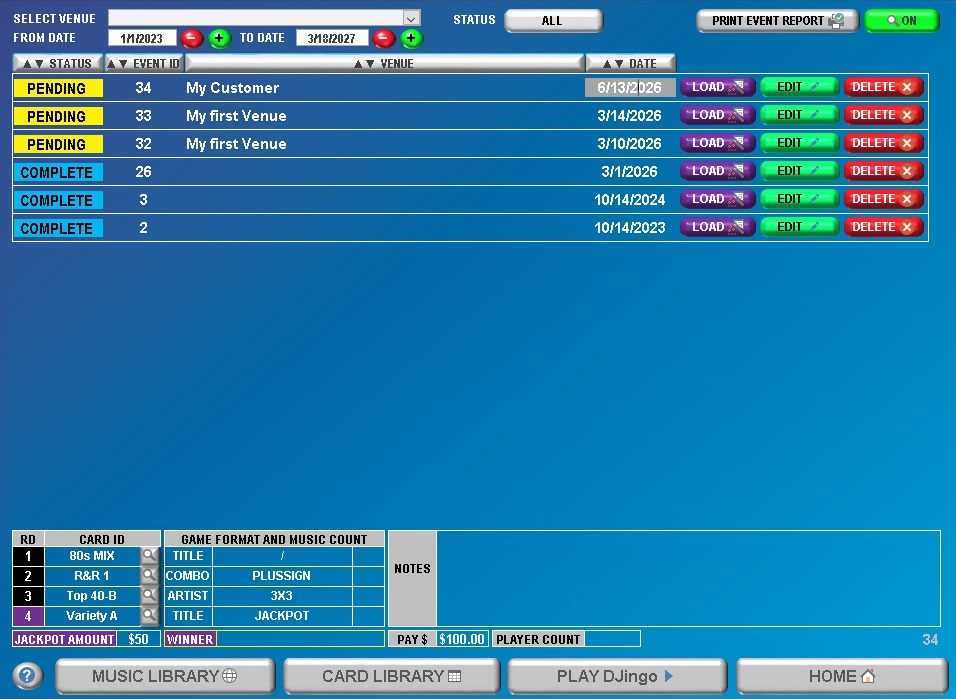
The DJingo Event Log stores a history of all of your hosted events and pre-configured future events. Saved information includes rounds played, game cards and play formats, music play counts, Jackpot amounts, winner names, player counts, logo and card image settings, and event notes. Make each event fresh by mixing in different game cards and know exactly where to resume Jackpot rounds, play counts, and prize amounts for each venue. Save your compensation amount and you can even run a report of your earnings, helping to simplify your tax reporting. Date and status filters make it easy to find your event information.
As you can see from all the well thought out features, DJingo makes hosting and managing events quick and easy. Try it for yourself and see how fun and easy it can be.
Click HERE to download the FREE Demo version with absolutely no strings attached. No email required. No credit card required. No mailing list to join. No bloatware or spyware installed. No technical know-how required. Nada! Just one small file and folder that you can easily and permanently delete if you’re not 100% satisfied.
If you’re ready to take advantage of all the intuitive, time-saving and robust features of DJingo, click the PayPal button below or anywhere you see the PayPal button on our site.
dj mixer,dj virtual,virtual dj,virtualdj,dj app,dj mixer app,host a holiday party,event,event management,karafun,karaoke songs,karaoke version,starmaker,karaoke youtube,karaoke machine,karaoke online,gala bingo,mecca bingo,bingoplus,buzz bingo,bingo games,bingo frenzy,bingo card generator,bingo online,bingo cards,bingo caller,bingo card,free bingo games,free bingo,let’s play bingo,bingo game,bingo generator,bingo maker,bingo live,online bingo,bingo number generator,free bingo games online,bingo template,play bingo,how to make money,work from home jobs,way to earn money from home,how to earn money,side hustles,make money,virtual family party ideas,part time jobs near me,part time jobs,bingo musical,music bingo card generator,guess the song,song quiz,guess the song,song trivia,guess the song game,music,bingo cards,djbingo,jindo,muzingo,bingomaker,playsingo,bingoblitz,bingomaestro,bingofy,myfreebingocards,musicbingo,mixtape music bingo